Search Food
Search thousands of foods and brands, then choose a serving and quantity. Starting an online search requires Pro.
Best when you know the food or brand name. Cholesterol TrackerBack to home
 Complete app guide
This guide follows the app screen by screen. Start with the quick answer below, or use the contents to learn search, scanning, Quick Log, Diary, goals, Stats, reminders, and Health sync.
Show the logging steps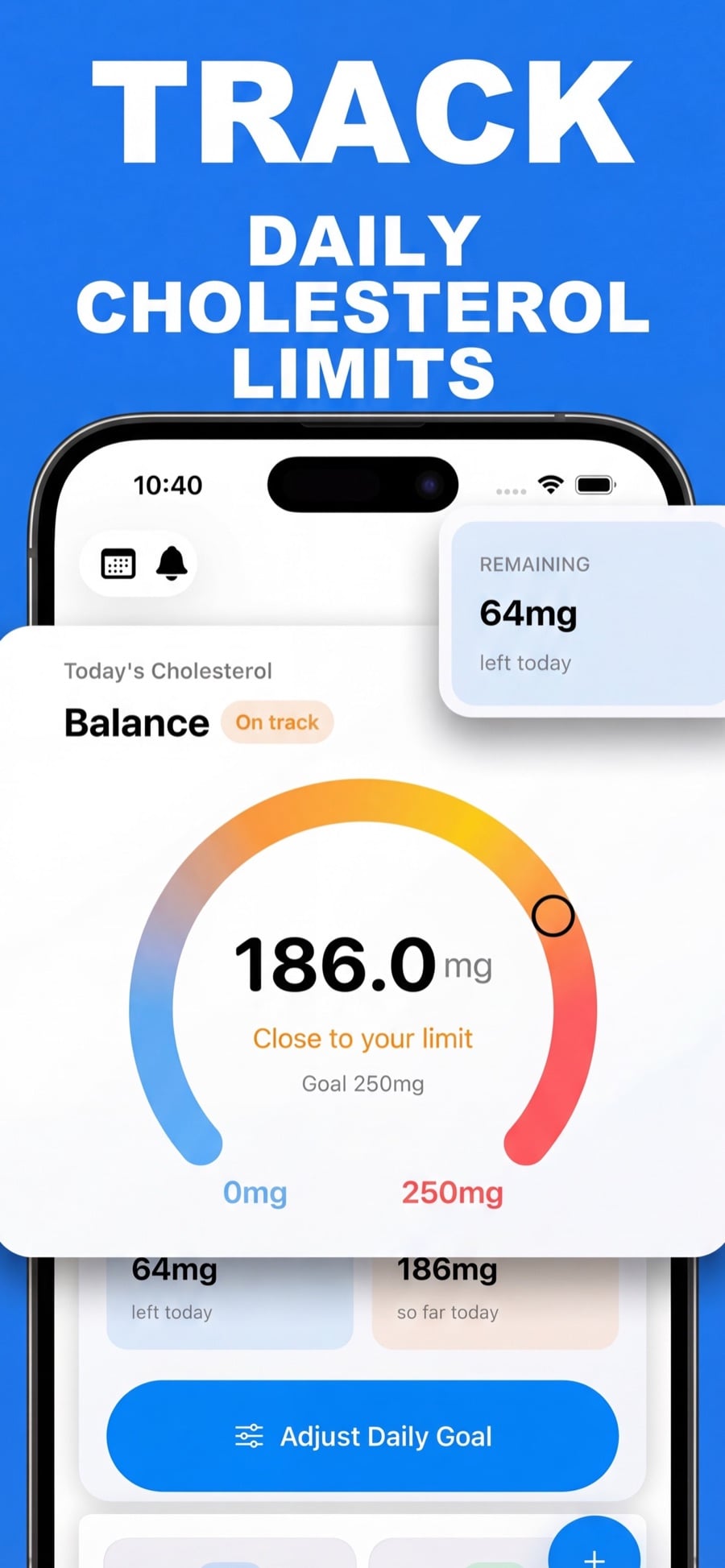
Choose a method
All four methods create an entry in your Diary, but they start from different information.
Search thousands of foods and brands, then choose a serving and quantity. Starting an online search requires Pro.
Best when you know the food or brand name.Enter a food name and its dietary cholesterol directly in milligrams. No serving or macro data is required.
Best when the label already tells you the cholesterol amount.Photograph a meal or choose a picture, add optional details, and review the app’s estimate before logging.
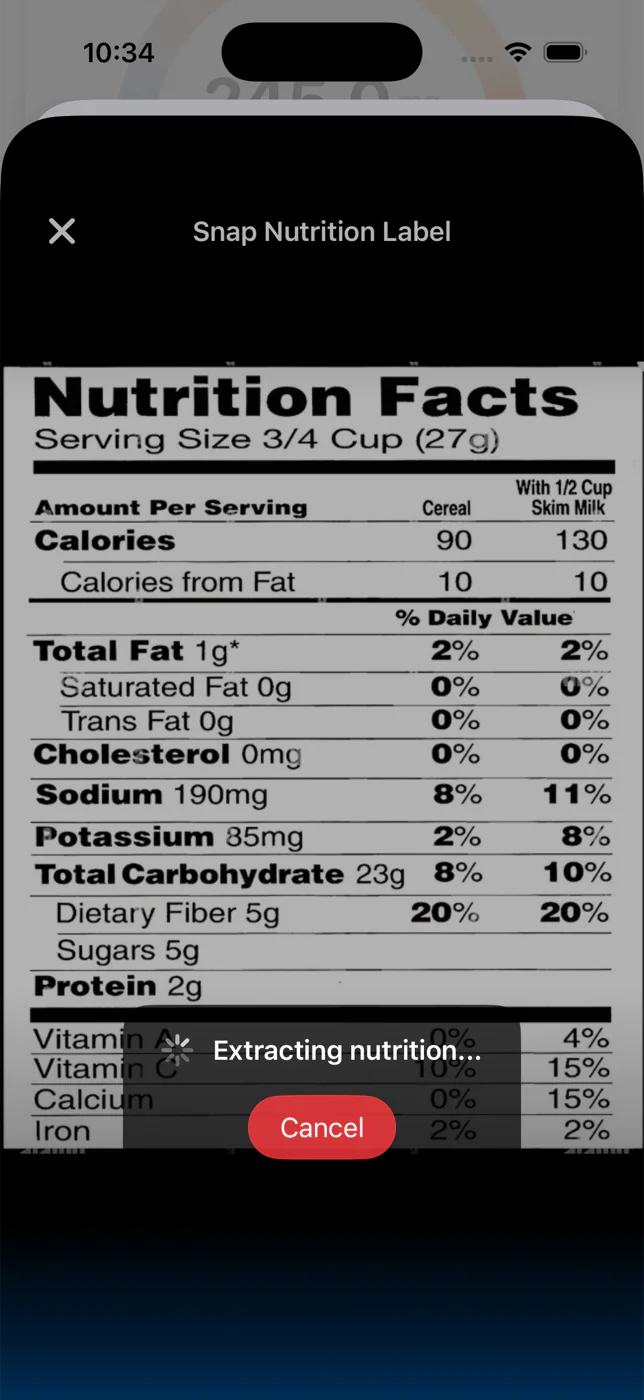
Best when searching each ingredient would take too long.Capture a nutrition label, review the extracted serving and nutrient values, and correct anything before saving.
Best for packaged food with a readable label.Method 1
Use this when you want serving-based nutrition from a food or brand result.
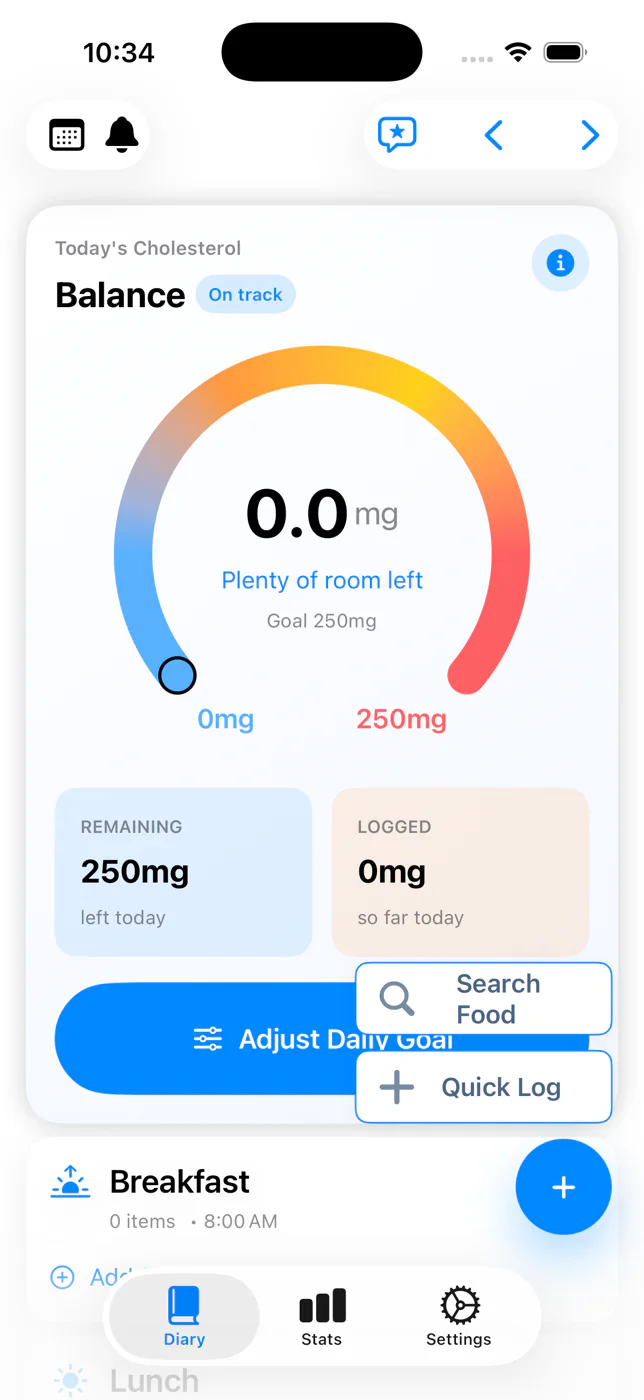
From Diary, tap the blue + and choose Search Food. You can also tap Add Food on a meal card.
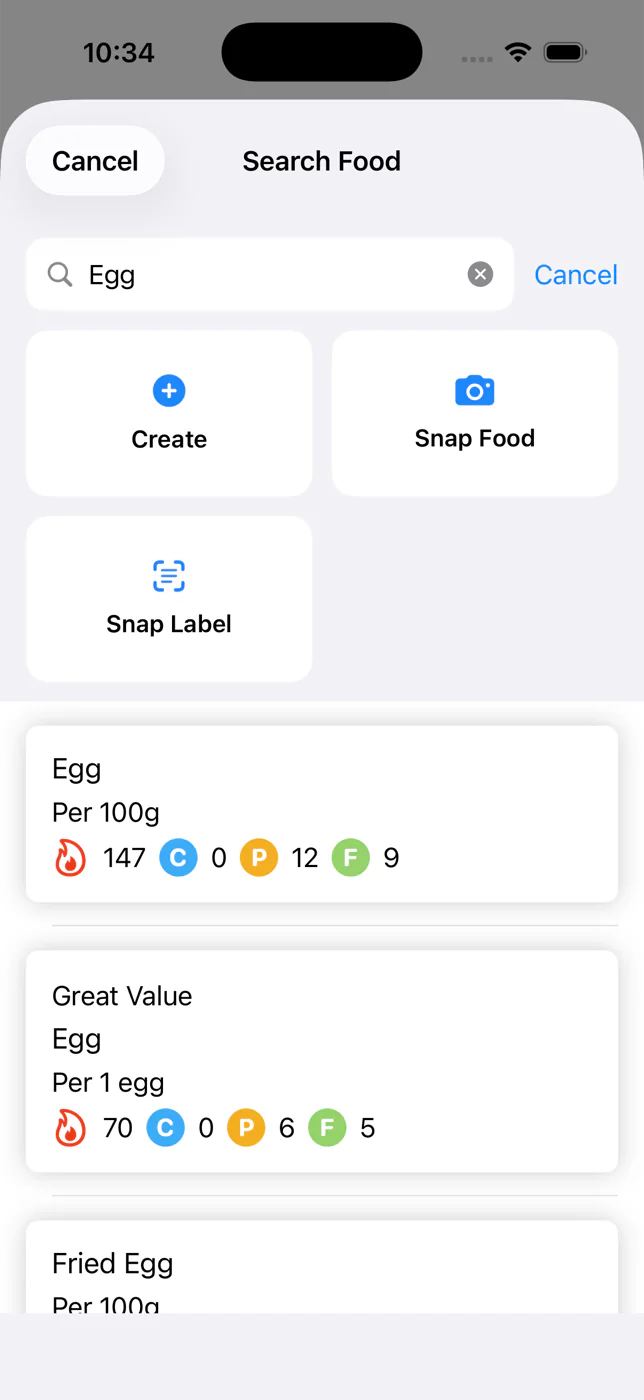
Enter a food or brand in “Search for any food or brand..” and press Search on the keyboard. Online database search requires Pro; the app shows the upgrade screen if it is unavailable.
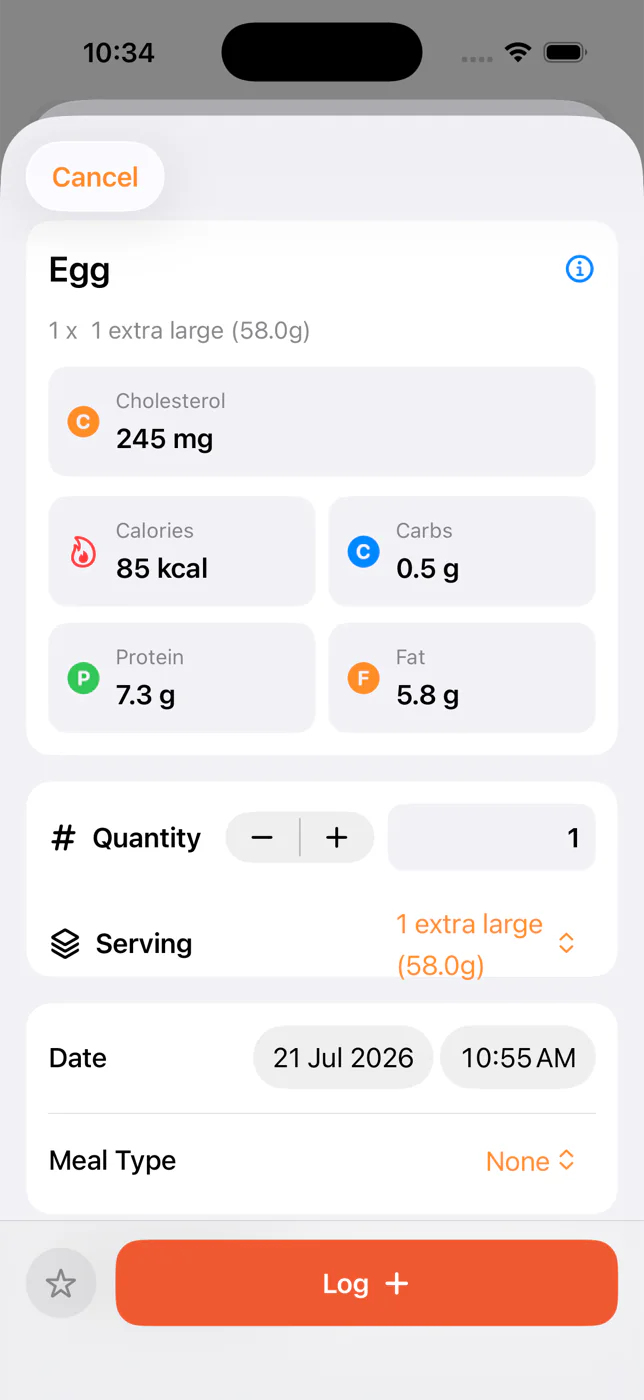
Tap a result to open Log Food. Review the food name and the highlighted cholesterol, calories, carbs, protein, and fat.
Quantity is the number of selected servings. Use the stepper or type a decimal, then choose the correct serving from the menu. The nutrition values update when either changes.
Date includes both day and time. Meal can be None, Breakfast, Lunch, Snack, or Dinner. Choosing a meal makes the Diary easier to read.
Tap Log Food in the bottom bar. The star beside it saves the food as a Favorite for faster reuse. Cancel closes the screen without logging.
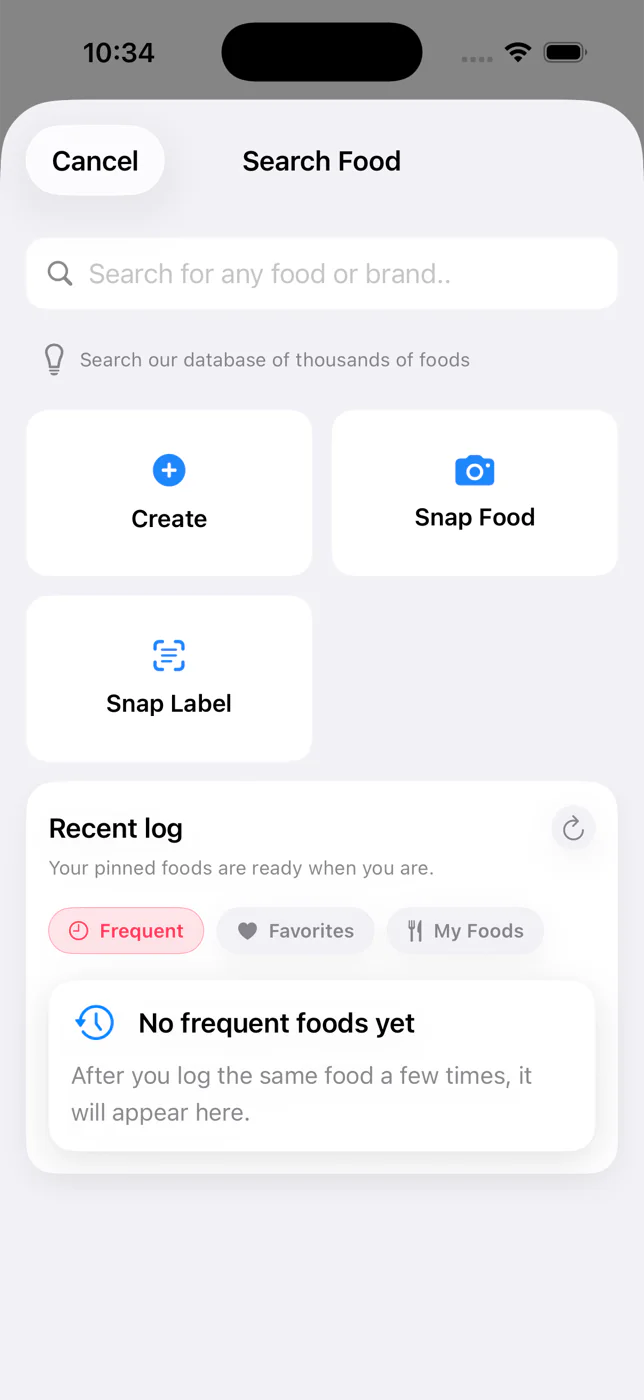
When the search field is empty, the app shows three lists:
Tap any item, adjust its date, meal, quantity, or serving, and tap Log Food. This creates a new Diary entry; it does not overwrite the earlier one.
Method 2
Quick Log is the shortest path when you already know the dietary cholesterol value.
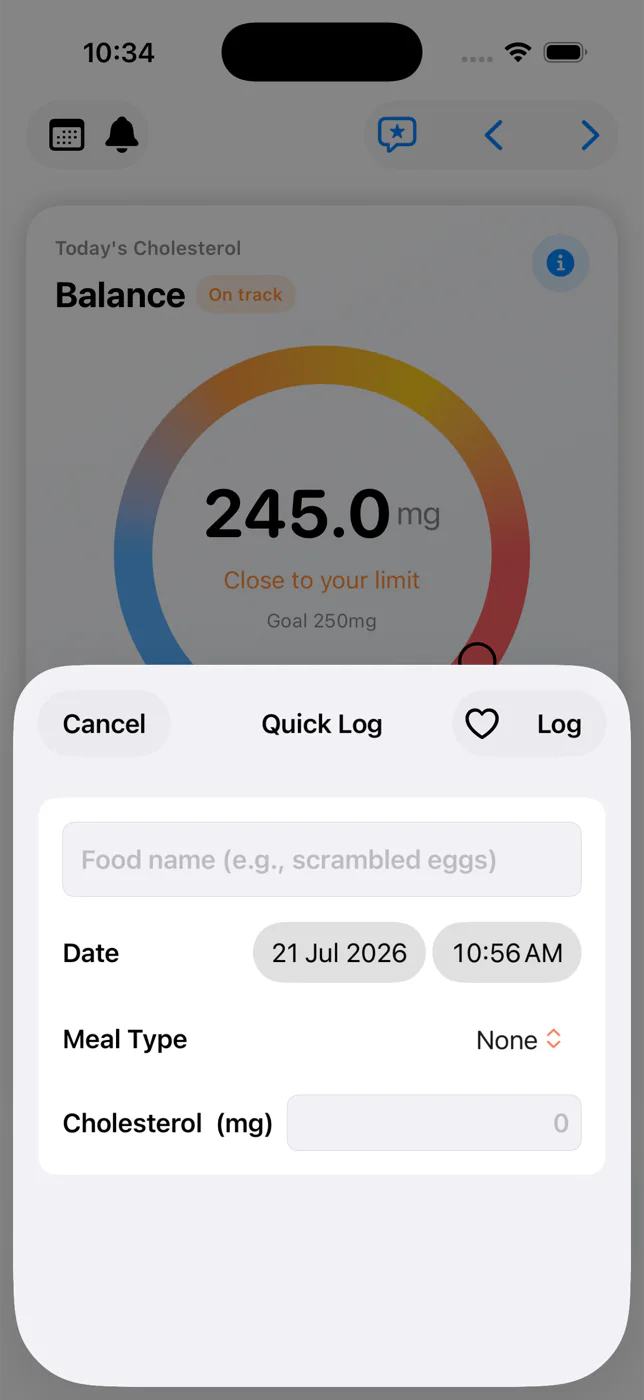
Tap the blue + on Diary and choose Quick Log, or open Search Food and tap Quick Log near the top.
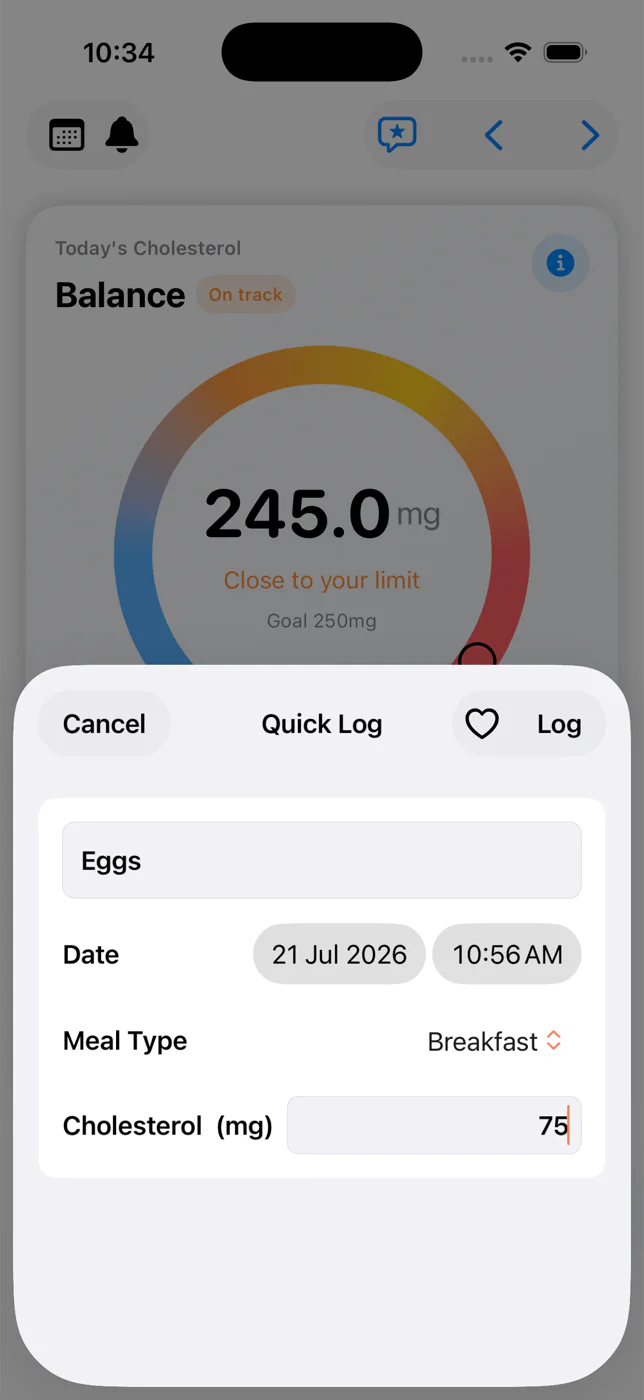
A name is required. For example: “Scrambled eggs.” If the name is blank, the app closes without creating a saved entry.
Set when you ate it and optionally assign Breakfast, Lunch, Snack, or Dinner. Leave Meal Type as None to group it by time of day.
Enter the total dietary cholesterol for the amount you ate—not an LDL, HDL, or blood-test number.
The Log button is in the top-right corner. The heart beside it marks the food as a Favorite.
Methods 3 & 4
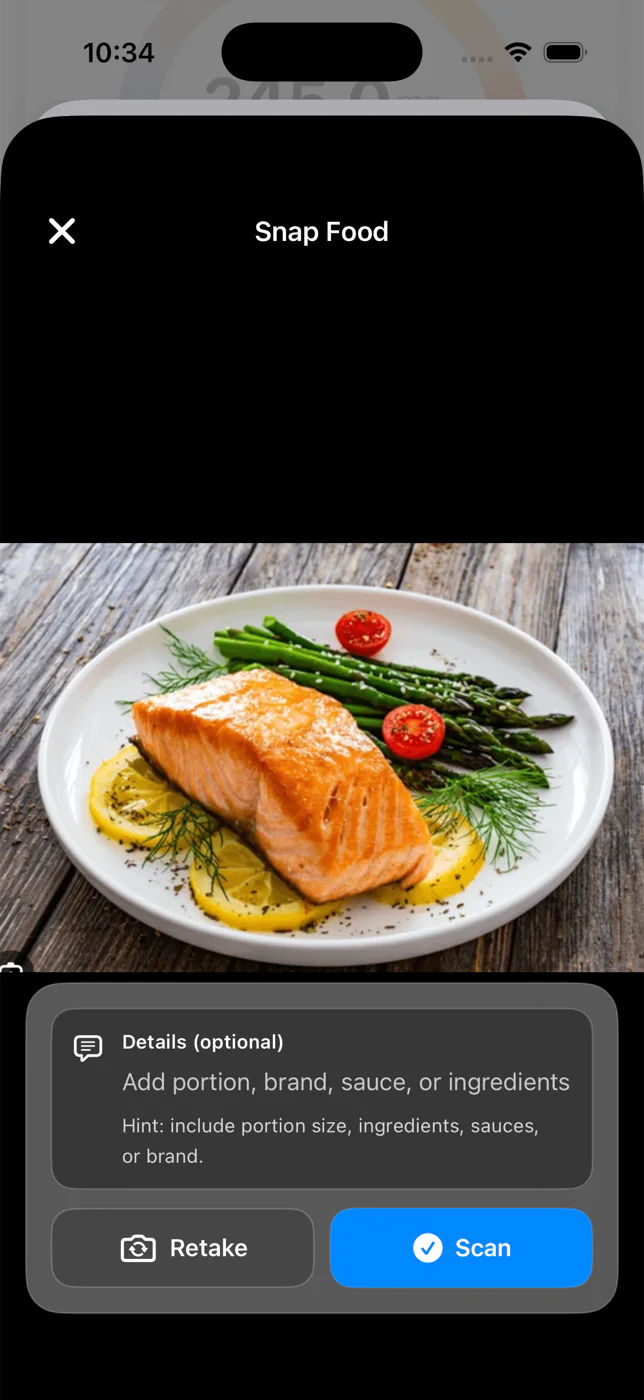
Use the camera or an existing photo, then review the result before it becomes part of your Diary.
Use the shutter button, or tap the photo-library icon. After choosing the image, crop it so the food fills the frame.
On the review screen, optionally describe portion size, ingredients, sauces, or brand. This context can improve the estimate.
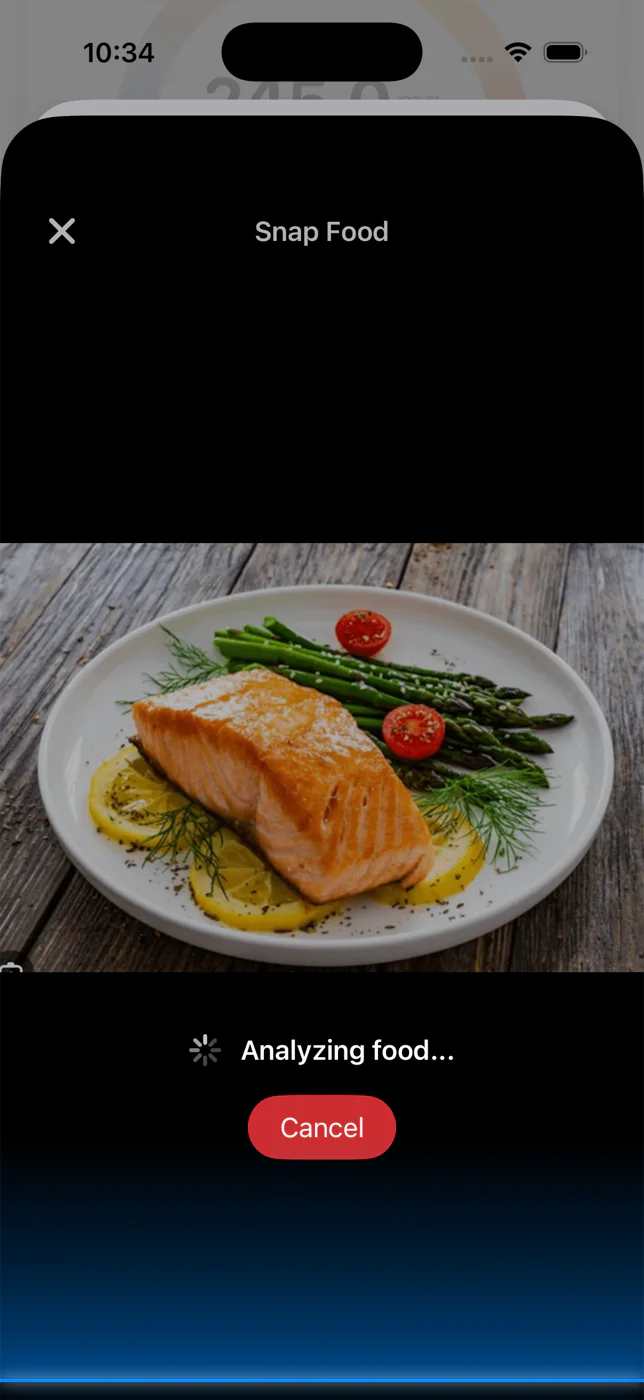
Use Retake if the picture is unclear. During analysis you can cancel. A slow connection prompts you to Retry.
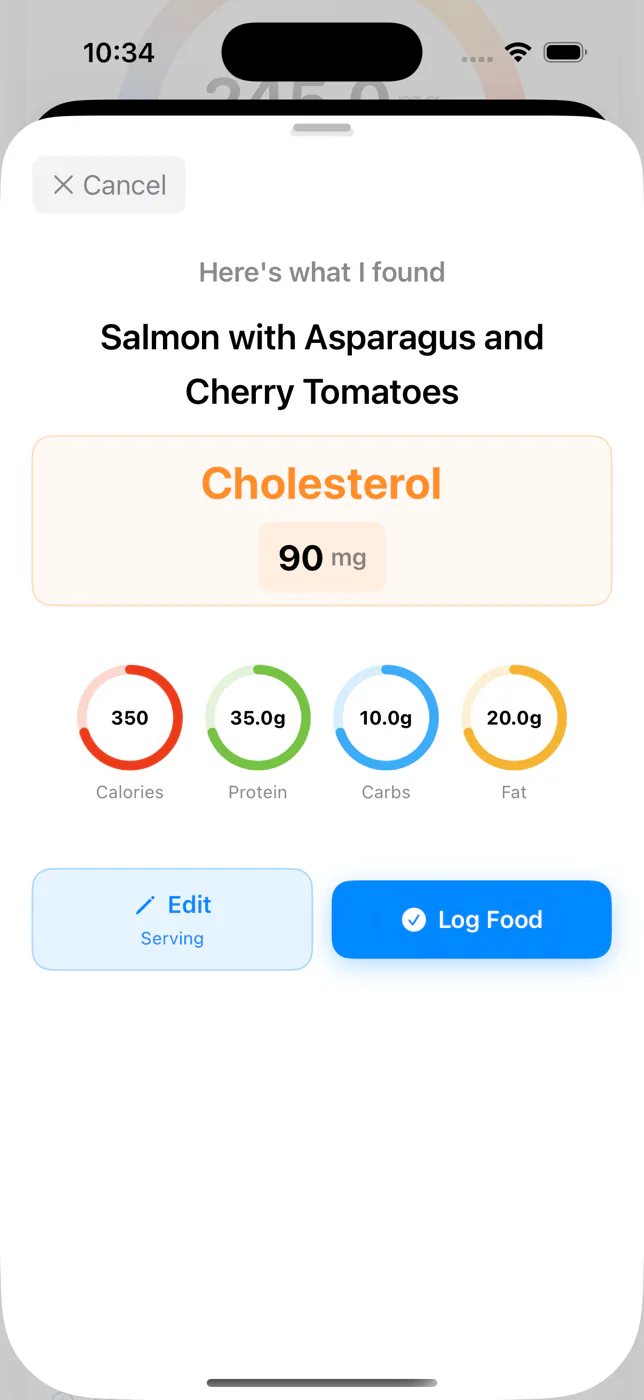
Check the food name and cholesterol first, then calories and macros. Tap Log Food only if the estimate is acceptable.
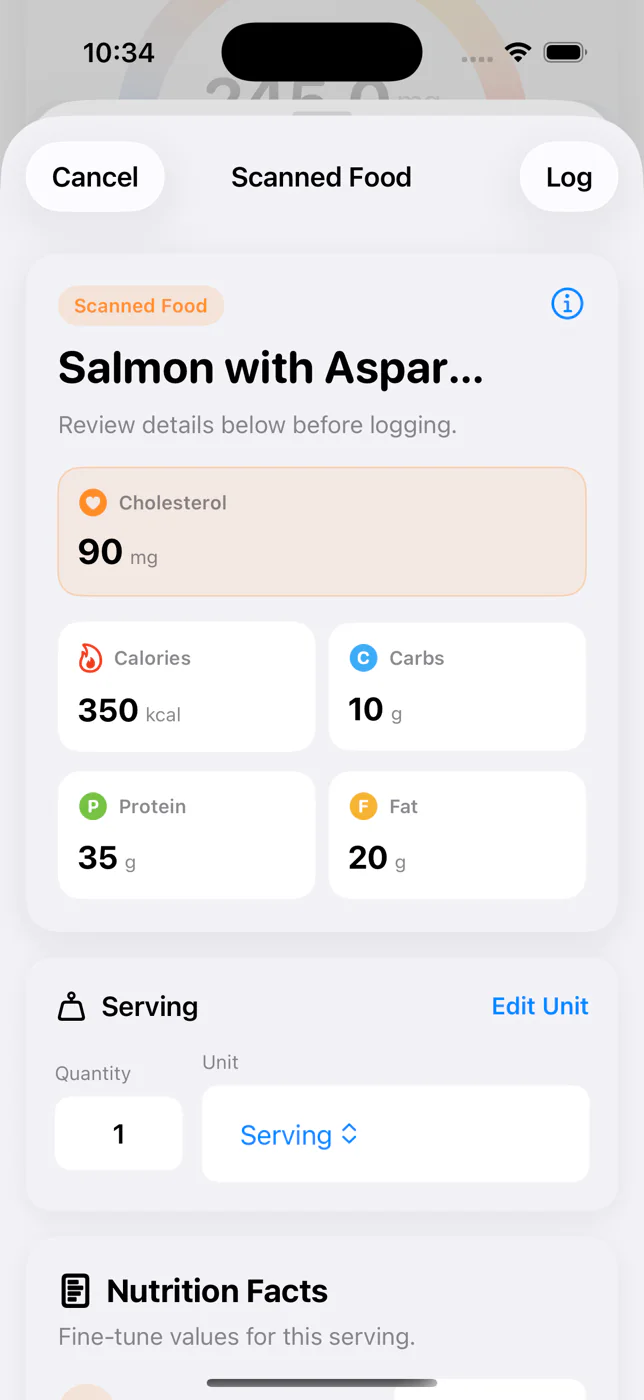
Tap Edit to change the name, cholesterol, calories, carbs, protein, fat, sodium, serving quantity, or unit. Tap Log in the top-right to save the corrected entry.
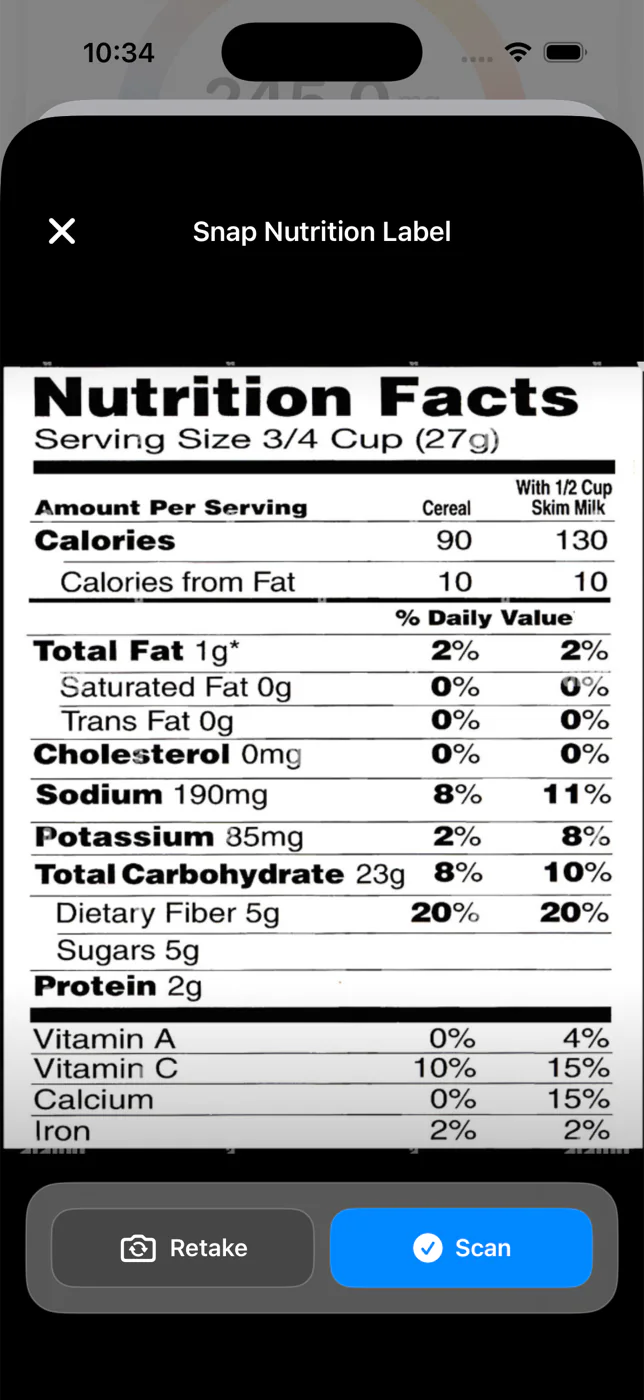
This Pro feature follows the same camera, crop, review, and scan process. Keep the full Nutrition Facts panel sharp and well lit. On the Scanned Food screen:
Diary
Diary is the source of truth for what has actually been saved.
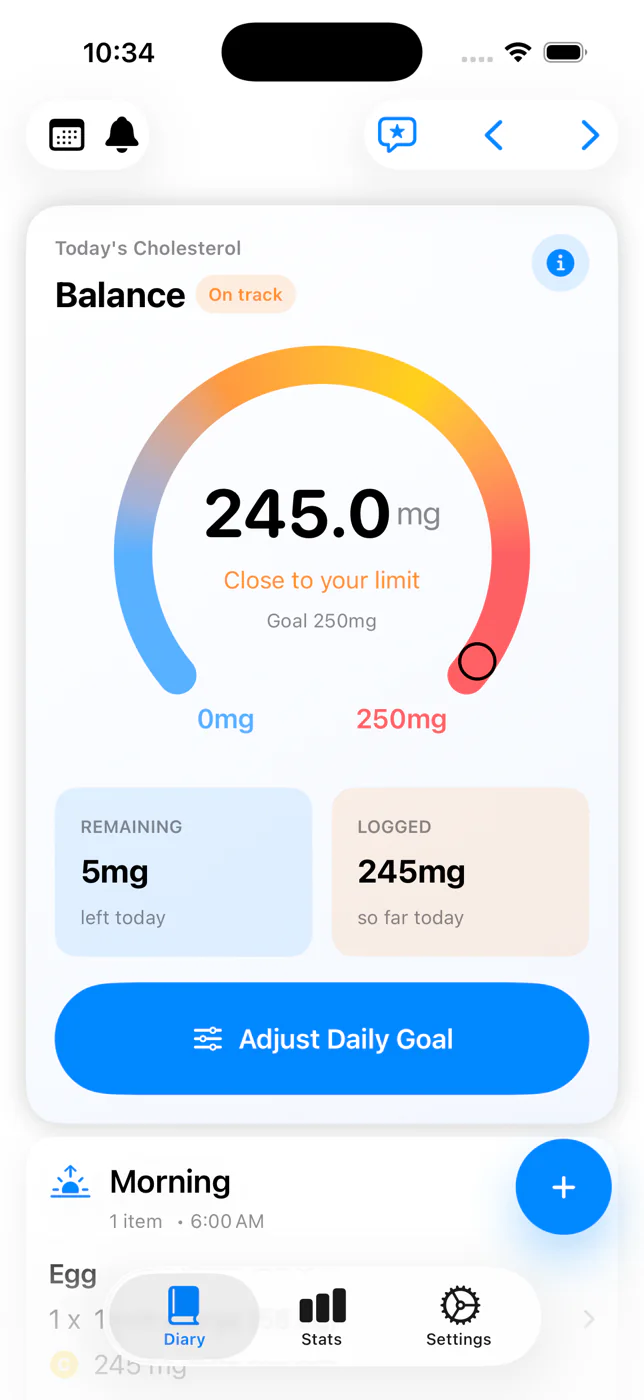
The sum of dietary cholesterol from all entries on the selected day.
Your daily goal minus the amount logged. The gauge shows your progress toward the goal.
Saved foods grouped under Breakfast, Lunch, Snack, Dinner, or a time-of-day heading.
Opens Search Food and starts a new entry. It does not edit the meal card itself.
Tap the calendar button near the top of Diary. Pick a date and tap Done, or use Today and Yesterday. The total and meal cards change to that selected date.
The entry is still logged. The app places it into a time-based section: Morning, MidDay, AfterNoon, Evening, or Late Night, based on its saved time.
Manage entries
Start from the Diary entry you want to change.
Open the relevant meal or time-of-day card and tap the row with the chevron.
For a database or scanned food, change quantity, serving, date, meal, or Favorite, then tap Update. For a Quick Log, change the name, amount, date, meal, or Favorite and save the update.
On an existing database-food entry, open the ellipsis menu and choose Log Again. This creates another entry using the displayed values.
Use the ellipsis menu and choose Delete, then confirm. Quick Log entries have their own edit screen with delete controls.
Daily target
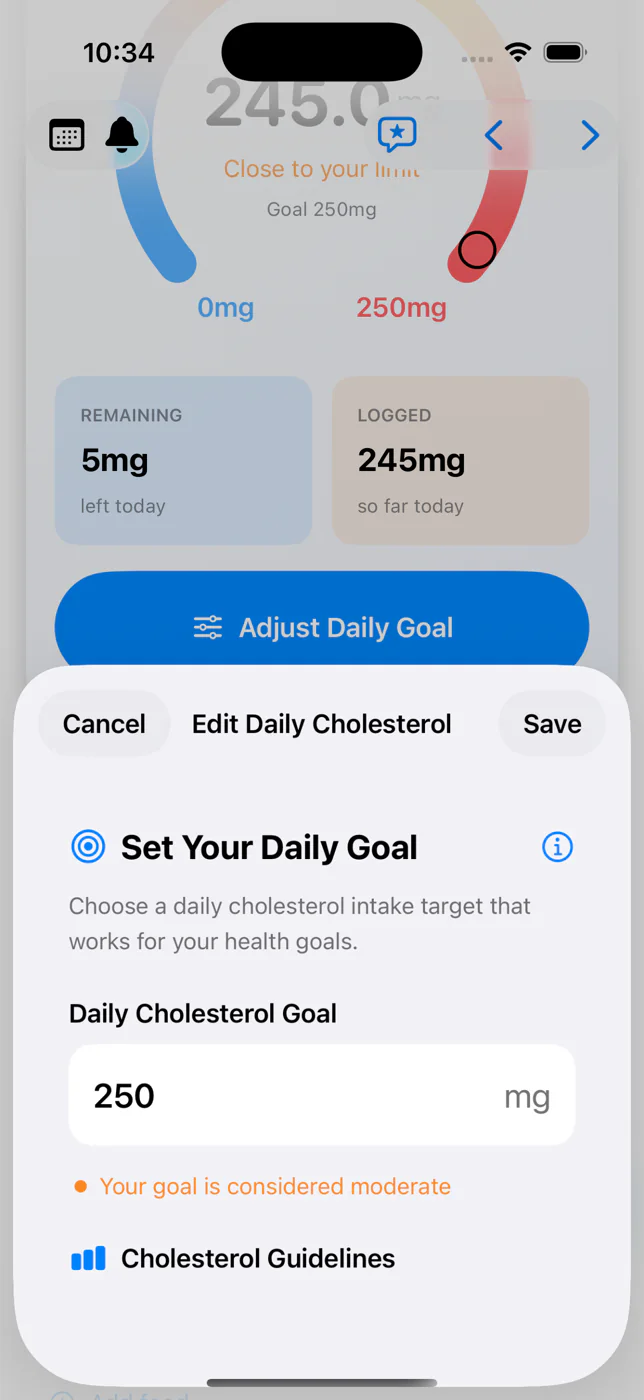
Your goal controls Remaining and the progress display; it does not block logging above the target.
On Diary, tap Adjust Daily Goal in the cholesterol summary card.
The value must be greater than zero. The app shows its built-in Optimal, Moderate, or High intake label.
The Diary gauge and widget refresh with the new target.
Stats tab
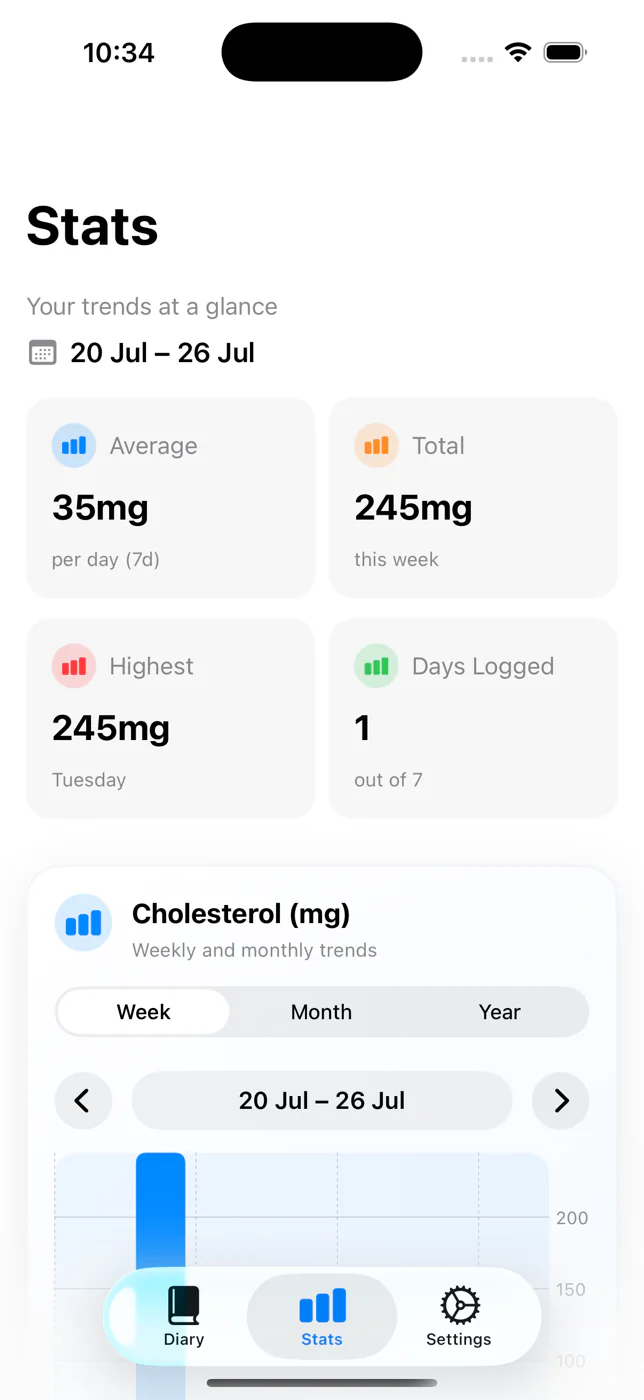
Stats summarizes saved Diary entries; it does not import blood cholesterol measurements.
Settings
Open the Settings tab from the bottom navigation.
Create repeating reminders with the + button (requires Pro). Swipe a reminder left to remove it. If permission is denied, use the Settings button to open iOS Settings.
Switch the app between light and dark appearance.
Tap Grant Permission to let Cholesterol Tracker write logged dietary cholesterol to Apple Health. If the permission prompt no longer appears, manage access in iOS Settings or Health → profile → Apps and Services/Data Access → Cholesterol+.
Creates an email with the app version in the subject. Copy the Customer ID shown in Settings when the issue involves a purchase or subscription.
Troubleshooting
Start with the symptom that matches what you see.
Confirm the food appears in the Diary. Choosing a result or serving does not save it; you must tap Log Food (or Log in Quick Log/scanner edit).
Open the entry and check its Date. An entry saved for another date is counted on that date, not Today.
Check the displayed Cholesterol value before logging. Some foods or scanned results contain 0 mg.
For Quick Log, enter a Food name. The app does not save a Quick Log with an empty name.
Use the keyboard’s Search button after typing the full food or brand name.
Try a simpler phrase, such as “fried egg” instead of a complete meal description.
Use Snap Food, Snap Nutrition Label, or Quick Log when no suitable database result exists.
Check both Quantity and Serving. For example, 2 × 1 egg is different from 2 g.
For scans, tap Edit and correct the food name, cholesterol, serving quantity, unit, or other nutrients before logging.
Food scans are estimates. Use a package label or trusted food database when precision matters.
Edit the entry and select Breakfast, Lunch, Snack, or Dinner in Meal.
If Meal is None, the app groups the entry by its time as Morning, MidDay, AfterNoon, Evening, or Late Night.
The milligrams recorded from foods in Diary. This is what the app totals and charts.
LDL, HDL, and triglycerides measured by a healthcare professional. The app does not measure or predict these values.
Still need help?
Include the food name, logging method, serving and quantity, selected date, cholesterol shown before saving, and a screenshot of the Diary afterward.